Limited-Time Offer: Enjoy 50% Savings! - Ends In 0d 00h 00m 00s Coupon code: 50OFF
Welcome to QA4Exam
Logo

- Trusted Worldwide Questions & Answers

Most Recent AutoDesk RVT_ELEC_01101 Exam Dumps


Prepare for the AutoDesk Autodesk Certified Professional in Revit for Electrical Design exam with our extensive collection of questions and answers. These practice Q&A are updated according to the latest syllabus, providing you with the tools needed to review and test your knowledge.

QA4Exam focus on the latest syllabus and exam objectives, our practice Q&A are designed to help you identify key topics and solidify your understanding. By focusing on the core curriculum, These Questions & Answers helps you cover all the essential topics, ensuring you're well-prepared for every section of the exam. Each question comes with a detailed explanation, offering valuable insights and helping you to learn from your mistakes. Whether you're looking to assess your progress or dive deeper into complex topics, our updated Q&A will provide the support you need to confidently approach the AutoDesk RVT_ELEC_01101 exam and achieve success.

The questions for RVT_ELEC_01101 were last updated on Apr 22, 2026.
  • Viewing page 1 out of 13 pages.
  • Viewing questions 1-5 out of 63 questions
Get All 63 Questions & Answers
Question No. 1

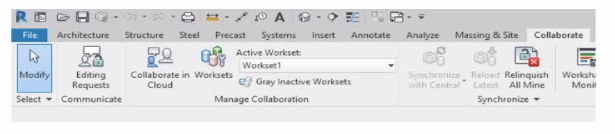
How can an electrical designer see changes from other users without saving their own work to the central model?

Show Answer Hide Answer
Correct Answer: B

In Autodesk Revit, particularly for electrical and MEP design disciplines using a workshared model, the command ''Reload Latest'' allows a designer to see changes made by other users without saving or publishing their own work to the central model. This tool ensures that while the designer continues to work locally, their environment stays updated with the latest modifications made by colleagues.

According to the Autodesk Revit MEP User Guide (Chapter 54 -- Working in a Team), under the section Loading Updates from the Central Model, it states:

''As you work, you can see the changes other team members have made to the project after they have been synchronized with the central model. You can load updates from the central model without publishing your changes to the central model. In your local file, click Collaborate tab Synchronize panel (Reload Latest).''

This confirms that the Reload Latest command refreshes your local file with any modifications from the central file that others have synchronized, but it does not send your local changes back. It is a critical feature for coordination in a team environment, especially when multiple designers---such as electrical, mechanical, and structural engineers---are contributing simultaneously to a shared BIM model.

By contrast:

A . Relinquish All Mine only releases ownership of elements but doesn't update the local model.

C . Manage Worksets is for controlling visibility and editability of worksets.

D . Worksharing Display visually identifies ownership and status but doesn't refresh model data.

Therefore, when an electrical designer needs to review updates from others (for example, when a lighting layout needs coordination with architectural ceiling adjustments), the proper workflow is to use Reload Latest, ensuring all new information from the central model appears instantly without saving or affecting their current unsaved edits.

References:

Autodesk Revit MEP 2011 User's Guide, Chapter 54: Working in a Team, ''Loading Updates from the Central Model,'' pp. 1332--1333.

Autodesk Revit Structure User's Guide, Chapter 49: Working in a Team, ''Loading Updates from the Central Model,'' p. 1230.

Smithsonian Revit Template Guide (2021), Section 6.3.1 How Worksharing Works, confirming synchronization and reloading behavior for shared Revit environments.


Question No. 2

Refer to exhibit.

(The image is presented in Imperial units: 1 In = 25 mm (Metric units rounded).)

In the space properties for the space, the Lighting Calculation Luminaire Plane is Not Computed. What is causing this issue?

Show Answer Hide Answer
Correct Answer: B

The parameter ''Lighting Calculation Luminaire Plane: Not Computed'' in the Space Properties dialog appears when Revit cannot perform a lighting calculation because no valid lighting fixtures are present within that defined space.

According to the Autodesk Revit MEP User's Guide (Chapter: Spaces and Lighting Analysis):

''Lighting calculations are performed based on the luminaire data available in the space. If no light fixtures are present, the parameter 'Lighting Calculation Luminaire Plane' displays as 'Not Computed'. Revit requires at least one hosted or ceiling-mounted lighting fixture with a valid light source to calculate illumination.''

In this case, although the space has defined reflectance values (ceiling, wall, and floor) and a lighting calculation workplane height (2'-6''), Revit cannot compute the Luminaire Plane because the software has no lighting geometry to reference for the photometric analysis.

Explanation of incorrect options:

A . Missing IES file: This would cause inaccurate photometric output, but not ''Not Computed.''

C . Lights not circuited: Circuiting affects load summaries, not lighting calculations.

D . Lights at different elevations: Revit still computes the average luminaire plane even with varied fixture heights.

Thus, the lighting calculation is not computed simply because no lighting fixtures are placed in the space.

References:

Autodesk Revit MEP 2011 User's Guide, Chapter 46: Spaces and Lighting Analysis, pp. 1064--1068.

Autodesk Revit 2021 Electrical Design Guide, Lighting Analysis Parameters.

Smithsonian Facilities Revit Template User's Guide (2021), Section 8.7 -- Lighting Performance Parameters in Spaces.


Question No. 3

Refer to exhibit.

A panelboard has the following properties:

The Circuit Naming Scheme PanelSlolPhase. which defines the value of the Circuit Number parameter, is configured as follows:

In electrical settings. Phase Labels have not been modified from the default "A." "B." and "C-

The Circuit Number lot a single-pole circuit in the panelboard's first breaker position is----------(Enter the correct value into the field)

Show Answer Hide Answer
Correct Answer: A

The answer is P1/1/A

In Autodesk Revit Electrical Design, the Circuit Number for a branch circuit in a panelboard is automatically generated based on the Circuit Naming Scheme specified in the project's Electrical Settings. This naming scheme defines how each circuit is labeled by combining predefined fields such as Panel Name, Slot Index, and Phase Label.

From the exhibit, the Circuit Naming Parameter setup is configured as:

Name

Prefix

Sample Value

Suffix

Separator

Panel

Panel

Panel

---

''-''

Slot Index

Slot Index

Slot Index

---

''/''

Phase Label

Phase Label

Phase Label

---

---

The panelboard properties show that its Circuit Naming method is set to PanelSlotPhase, which means that Revit will generate circuit numbers using the following structure:

[Panel Name] -- [Slot Index] / [Phase Label]

From the exhibit:

Panel Name: P1

Slot Index (Breaker Position): 1 (since the question refers to the first breaker position)

Phase Label: A (default value for the first phase in a three-phase 120/208V Wye system)

Therefore, the Circuit Number for a single-pole circuit in the first breaker slot will be:

P1-1/A

This follows Revit's documented logic for circuit naming. According to the Autodesk Revit MEP User's Guide (Chapter 17 ''Electrical Systems''):

''The circuit numbering format is controlled by the Electrical Settings > Circuit Naming template. The default scheme combines panel name, circuit number, and phase label, using the separators defined by the user.''

Furthermore, the Smithsonian Facilities Revit Template User's Guide confirms:

''In the default electrical configuration, circuit numbers use the format [Panel Name]-[Circuit Number]/[Phase], such as 'P1-1/A' for the first single-pole circuit on phase A.''

Hence, based on the provided configuration and standard electrical setup, the correct circuit number for the first single-pole breaker position in panelboard P1 is P1-1/A.

References:

Autodesk Revit MEP User's Guide -- Chapter 17 ''Electrical Systems,'' pp. 420--427

Smithsonian Facilities Revit Template User's Guide -- Section 8.6 ''Panel Schedules and Circuit Naming Schemes,'' p. 90

Autodesk Revit Electrical Design Essentials -- ''Circuit Naming Rules and Panel Configuration Standards''


Question No. 4

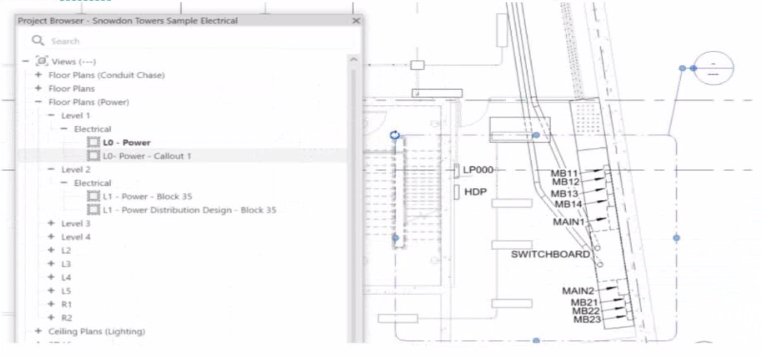
An electrical designer is working on a project with multiple buildings. The designer wants to organize the Project Browser by building For example, all views related to Building A will be sorted under Building A. and all views related to Building B will be sorted under Building B.

The designer decides to create a new parameter, assign it to views, and then sort the Project Browser according to the new parameter.

Which parameter should the designer use?

Show Answer Hide Answer
Correct Answer: C

In Autodesk Revit, Project Parameters are used to add custom fields that apply to multiple elements within a specific project file --- such as views, sheets, or schedules. These parameters allow project teams to categorize, group, and sort information within the Project Browser or within schedules without editing families or external files.

As defined in the Revit MEP User's Guide and Revit Structure Parameters Chapter:

''Project parameters are specific to a single project file. Information stored in project parameters cannot be shared with other projects. A project parameter can be used, for example, to categorize views within a project.''

This statement directly confirms that project parameters are the correct tool for sorting or grouping views in the Project Browser. To organize elements (like views or sheets) by building, the designer can create a custom project parameter named ''Building'' and assign it to the View category. Once assigned, the parameter values (e.g., ''Building A'' or ''Building B'') can be filled in for each view.

The Smithsonian Facilities Revit Template Guide further supports this:

''View purpose is a Revit project parameter, providing a means for users to organize the many views that may exist in a BIM.''

Thus, using a project parameter allows users to add a ''Building'' field to each view, enabling customized browser organization (e.g., group views by Building A, Building B, etc.) without requiring shared parameters or family editing.

References:

Revit MEP User's Guide -- Chapter ''Parameters'' p. 1541--1543

Smithsonian Facilities Revit Template User's Guide -- Section 2.8.1 ''View Types and View Templates,'' p. 29

Autodesk Revit Electrical Design Essentials -- Parameter Management Section


Question No. 5

Refer to exhibit.

An electrical designer wants to report Breaker Type for each breaker in a panel schedule. The designer adds a column to the schedule as shown (and highlighted) in the image.

Which type of parameter should the designer create to add to the column?

Show Answer Hide Answer
Correct Answer: C

In Autodesk Revit Electrical Design, panel schedules display data that originates from the Electrical Circuits category, not directly from the Electrical Equipment or Electrical Fixtures families. Each circuit in a panel schedule represents an instance of an Electrical Circuit object within Revit's system-based MEP structure. Therefore, to add an additional field like Breaker Type, the parameter must be created and assigned specifically to the Electrical Circuits category.

According to the Revit MEP User's Guide -- Chapter 50 ''Electrical Systems and Panel Schedules'':

''Panel schedules display parameters that are associated with electrical circuits, including load names, rating, poles, and breaker information. To include additional circuit information in a panel schedule, create a Project Parameter assigned to the Electrical Circuits category.''

This means the designer should: 1 Open Manage Project Parameters Add 2 Create a Project Parameter named Breaker Type 3 Assign it to the Electrical Circuits category 4 Set it to appear in schedules and tags, ensuring it becomes available for use in the panel schedule template

As noted in the Smithsonian Facilities Revit Template User's Guide:

''Custom circuit data fields such as 'Breaker Type' or 'Wire Tag' are defined as project parameters applied to the Electrical Circuits category so they can be displayed in panel schedule templates.''

Incorrect options:

A . Shared Parameter in Electrical Equipment --- Electrical Equipment holds overall panel data (e.g., Mains Rating, Voltage) but not per-circuit data.

B . Shared Parameter in Electrical Fixture families --- Fixtures are individual load devices, not part of the circuit's breaker assignment.

D . Project Parameter assigned to Electrical Equipment --- would apply to the panelboard as a whole, not to individual breakers in circuits.

Thus, the correct answer is C. Project Parameter assigned to Electrical Circuits, ensuring each breaker in the panel schedule can display its type individually and dynamically.

References:

Autodesk Revit MEP User's Guide -- Chapter 50 ''Electrical Systems and Panel Schedules,'' pp. 1134--1142

Smithsonian Facilities Revit Template User's Guide -- Section 8.7 ''Electrical Panel Schedule Customization,'' p. 91

Autodesk Revit Electrical Design Essentials -- ''Custom Circuit Parameters and Schedule Configuration''


Unlock All Questions for AutoDesk RVT_ELEC_01101 Exam

Full Exam Access, Actual Exam Questions, Validated Answers, Anytime Anywhere, No Download Limits, No Practice Limits

Get All 63 Questions & Answers