Limited-Time Offer: Enjoy 50% Savings! - Ends In 0d 00h 00m 00s Coupon code: 50OFF
Welcome to QA4Exam
Logo

- Trusted Worldwide Questions & Answers

Exam dumps demo

D-VXR-OE-23 Exam Dumps and Practice Questions

Preview page 1 of 9 with real questions 1 to 5 from the full 47-question Dell set.

Most Recent Dell D-VXR-OE-23 Exam Dumps


Prepare for the Dell VxRail Operate 2023 exam with our extensive collection of questions and answers. These practice Q&A are updated according to the latest syllabus, providing you with the tools needed to review and test your knowledge.

QA4Exam focus on the latest syllabus and exam objectives, our practice Q&A are designed to help you identify key topics and solidify your understanding. By focusing on the core curriculum, These Questions & Answers helps you cover all the essential topics, ensuring you're well-prepared for every section of the exam. Each question comes with a detailed explanation, offering valuable insights and helping you to learn from your mistakes. Whether you're looking to assess your progress or dive deeper into complex topics, our updated Q&A will provide the support you need to confidently approach the Dell D-VXR-OE-23 exam and achieve success.

Actual Dell D-VXR-OE-23 Exam Questions

Question 1

When the VxRail cluster is deployed, what vSAN storage policy settings are applied to the VxRail Manager VIVP

Correct answer: A

When the VxRail cluster is deployed, the vSAN storage policy settings applied to the VxRail Manager VM are as follows:

Failures to Tolerate: 1 failure - RAID 1 (Mirroring)

Object space reservation: Thin provisioning

These settings ensure that the VxRail Manager VM has redundancy to tolerate a single failure and uses thin provisioning to optimize storage usage.


Dell VxRail Deployment Guide: VxRail Deployment Guide

Question 2

SIMULATION

A VxRail administrator is concerned about security and wants to protect the vSAN storage against unauthorized access (for both data on disk and in flight.)

Use the simulator to enable the relevant services. A vSphere Native Key Provider has already been configured.

Correct answer: A

To protect the vSAN storage against unauthorized access for both data on disk and in-flight, enable vSAN data-at-rest encryption and data-in-transit encryption. Follow these steps:

Log in to vSphere Client:

Open the vSphere Client.

Enter the username: administrator@vsphere.local.

Enter the password: VMw@r3!123.

Click Login.

Navigate to vSAN Cluster Settings:

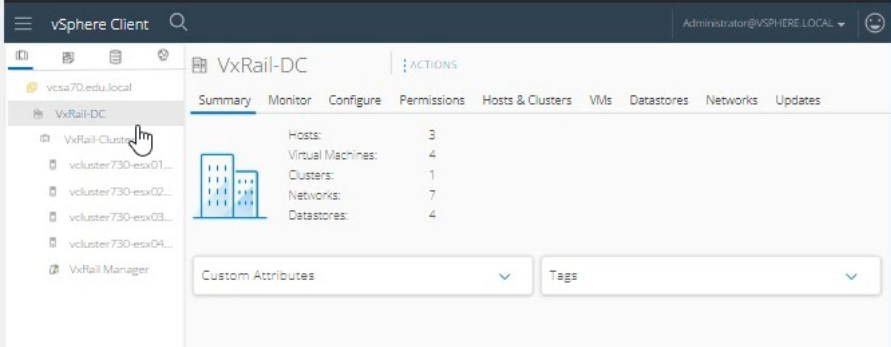
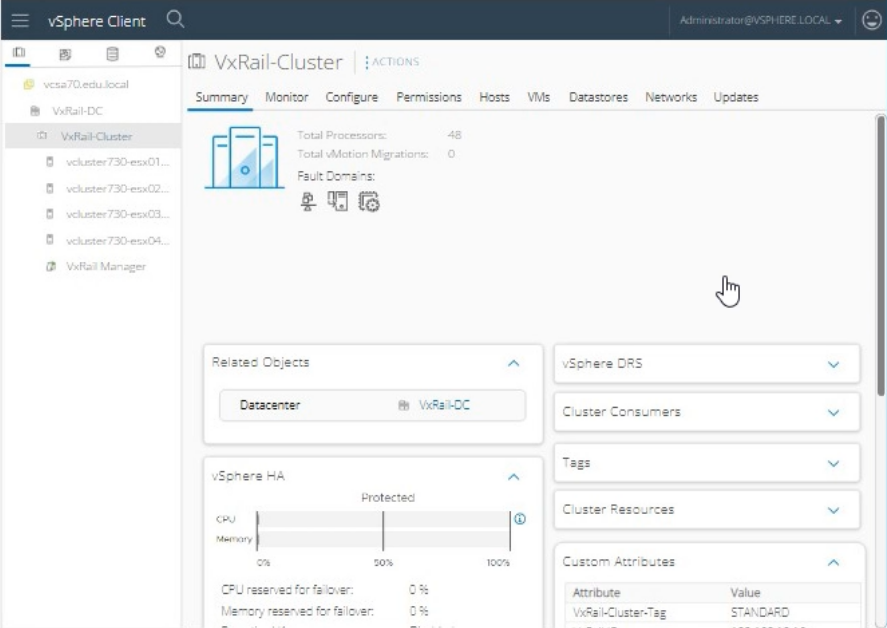
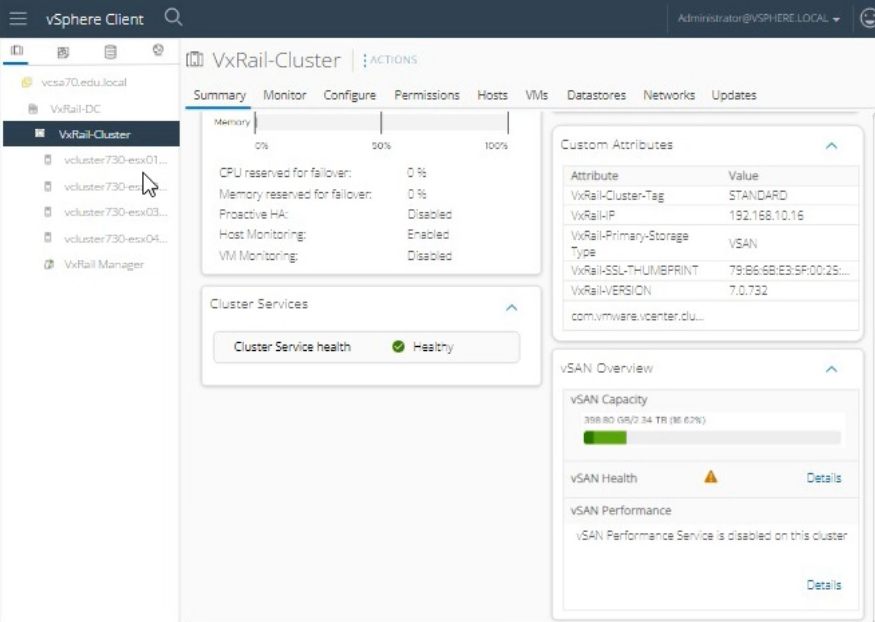
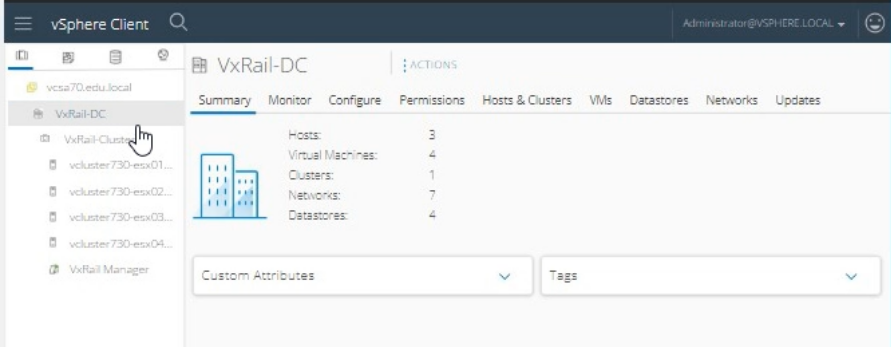
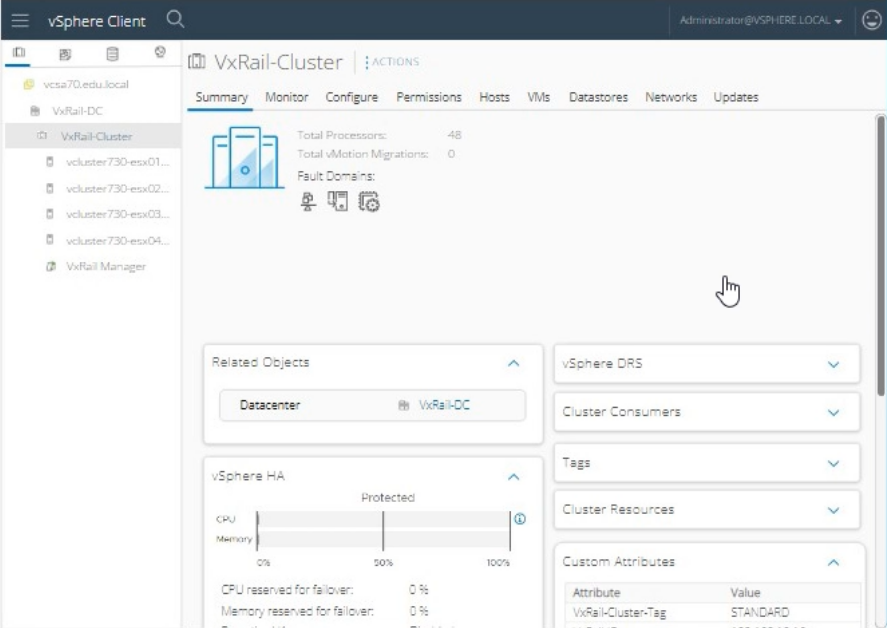
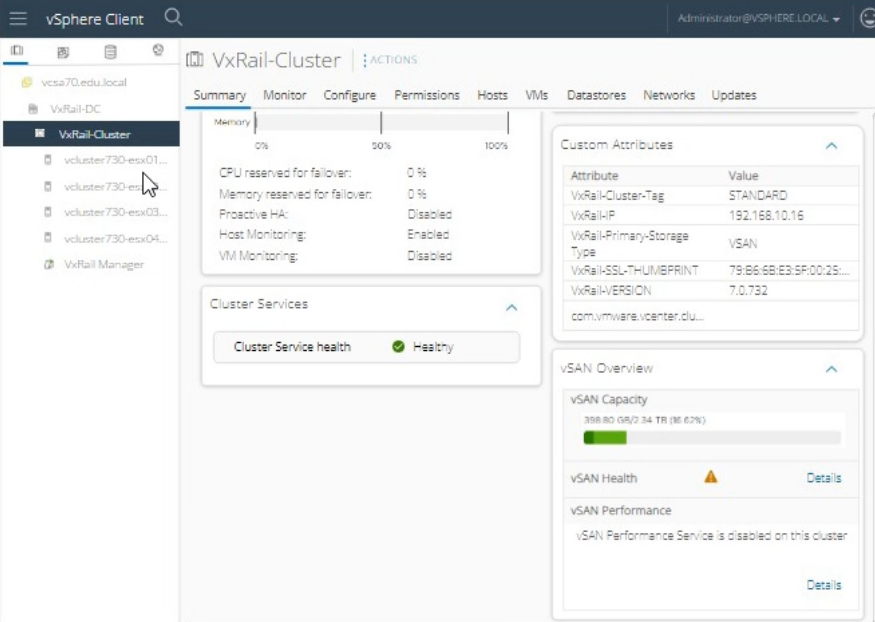
In the left-hand navigation pane, expand VxRail-DC and select VxRail-Cluster.

Click on the Configure tab.

Enable vSAN Data-at-Rest Encryption:

Under the vSAN section, select Services.

Click on Data-at-Rest Encryption.

Click Edit to configure encryption settings.

Ensure that the Enable Data-at-Rest Encryption checkbox is selected.

Choose the vSphere Native Key Provider that has already been configured.

Click Apply to enable data-at-rest encryption.

Enable vSAN Data-in-Transit Encryption:

Under the same vSAN section, select Services.

Click on Data-in-Transit Encryption.

Click Edit to configure encryption settings.

Ensure that the Enable Data-in-Transit Encryption checkbox is selected.

Click Apply to enable data-in-transit encryption.

Verify Configuration:

Return to the vSAN > Services section.

Ensure that both Data-at-Rest Encryption and Data-in-Transit Encryption are enabled and show as active.

Verify that there are no error messages indicating configuration issues.

Steps using the Simulator:

Login to vSphere Client:

Open the simulator and navigate to the vSphere Client interface.

Log in using the credentials:

Username: administrator@vsphere.local.

Password: VMw@r3!123.

Navigate to vSAN Settings:

In the vSphere Client interface, expand VxRail-DC and select VxRail-Cluster.

Click on the Configure tab on the right.

Enable Data-at-Rest Encryption:

Under vSAN, click Services.

Find Data-at-Rest Encryption and click Edit.

Check the box for Enable Data-at-Rest Encryption.

Select the vSphere Native Key Provider.

Click Apply.

Enable Data-in-Transit Encryption:

Still under vSAN > Services, find Data-in-Transit Encryption and click Edit.

Check the box for Enable Data-in-Transit Encryption.

Click Apply.

Verification:

Check the status of both encryption services under vSAN > Services to ensure they are enabled and operational.


VMware vSAN Security Guide: vSAN Security

By enabling both data-at-rest and data-in-transit encryption, you can protect the vSAN storage from unauthorized access and ensure data security both on disk and during transit.

Question 3

What is the vSAN automatic rebalancing threshold recommended by VMware?

Correct answer: D

The recommended vSAN automatic rebalancing threshold by VMware is 20%. This threshold ensures that vSAN automatically initiates rebalancing operations when the storage utilization across the disks in the vSAN datastore becomes uneven beyond this threshold, maintaining optimal performance and storage efficiency.


Question 4

What are two considerations of deploying VxRail Cluster with an existing customer-supplied vCenter Server? (Select 2)

Correct answer: B, D

When deploying a VxRail Cluster with an existing customer-supplied vCenter Server, two key considerations are:

Supports Enhanced Link Mode with other VxRail-managed vCenter Servers: This allows the existing vCenter Server to link with other VxRail-managed vCenter Servers, providing a unified management interface across multiple vCenter instances, enabling seamless operations and better scalability.

Uses customer-defined procedures for vCenter LCM (Lifecycle Management): Since the vCenter Server is customer-supplied, the procedures for upgrading and maintaining it are defined and managed by the customer, rather than being automatically handled by VxRail's built-in lifecycle management tools.


Dell VxRail Deployment with Existing vCenter Server Guide: VxRail Deployment Guide

Question 5

SIMULATION

Task

An administrator is working with the VxRail Dell Support team and as part of the troubleshooting, the admin has been instructed to temporarily remove the node with a serial number of "V0730040000000" from the cluster.

User credentials are Username of

"administrator@vsphere.local"

Password "VMw@r3!123".

Using the simulator, identify the correct node and remove it from the cluster.

Correct answer: A

To temporarily remove a node with a specific serial number from the VxRail cluster, follow these steps:

Log in to vSphere Client:

Open the vSphere Client.

Enter the username: administrator@vsphere.local.

Enter the password: VMw@r3!123.

Click Login.

Identify the Node with Serial Number 'V0730040000000':

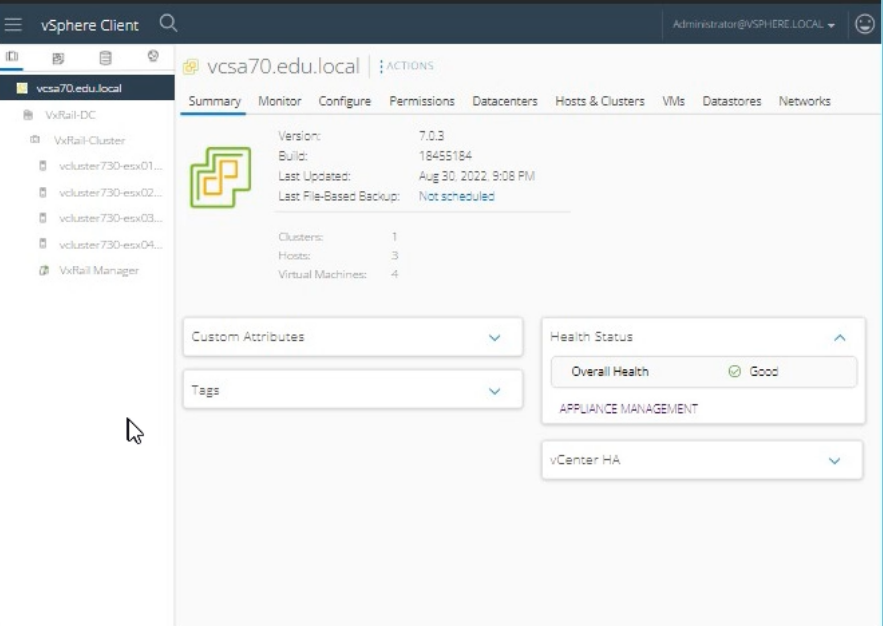
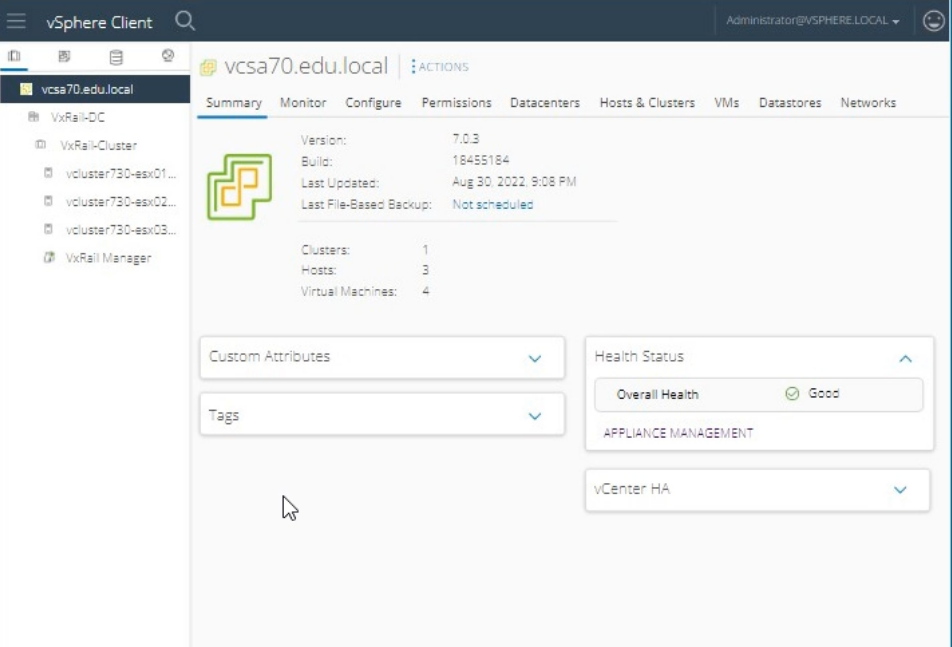
In the vSphere Client interface, navigate to the Hosts and Clusters view.

Expand the VxRail-DC and then the VxRail-Cluster.

Locate the Node:

Click on each host (e.g., vcluster730-esx01, vcluster730-esx02, vcluster730-esx03, vcluster730-esx04) and check the Summary tab to identify the node with the serial number V0730040000000.

The Summary tab provides details about the hardware, including the serial number.

Put the Node in Maintenance Mode:

Right-click on the identified node.

Select Maintenance Mode > Enter Maintenance Mode.

Select Ensure Accessibility and click OK.

Remove the Node from the Cluster:

Once the node is in maintenance mode, right-click the node again.

Select Remove from Inventory.

Confirm the action by clicking Yes or OK when prompted.

Verify the Node Removal:

Ensure that the node is no longer listed under the VxRail-Cluster.

Check the overall health and status of the cluster to confirm that it is functioning properly without the removed node.


Dell VxRail Administration Guide: VxRail Administration Guide

Note: Be cautious when removing nodes from a VxRail cluster, as this can impact the cluster's capacity and redundancy. Always follow proper procedures and consult with Dell Support as needed.

Unlock all Dell D-VXR-OE-23 questions

Full exam access, validated answers, and unlimited practice with no download limits.