Limited-Time Offer: Enjoy 50% Savings! - Ends In 0d 00h 00m 00s Coupon code: 50OFF
Welcome to QA4Exam
Logo

- Trusted Worldwide Questions & Answers

Most Recent Linux Foundation CKAD Exam Dumps


Prepare for the Linux Foundation Certified Kubernetes Application Developer exam with our extensive collection of questions and answers. These practice Q&A are updated according to the latest syllabus, providing you with the tools needed to review and test your knowledge.

QA4Exam focus on the latest syllabus and exam objectives, our practice Q&A are designed to help you identify key topics and solidify your understanding. By focusing on the core curriculum, These Questions & Answers helps you cover all the essential topics, ensuring you're well-prepared for every section of the exam. Each question comes with a detailed explanation, offering valuable insights and helping you to learn from your mistakes. Whether you're looking to assess your progress or dive deeper into complex topics, our updated Q&A will provide the support you need to confidently approach the Linux Foundation CKAD exam and achieve success.

The questions for CKAD were last updated on Apr 21, 2026.
  • Viewing page 1 out of 10 pages.
  • Viewing questions 1-5 out of 48 questions
Get All 48 Questions & Answers
Question No. 1

SIMULATION

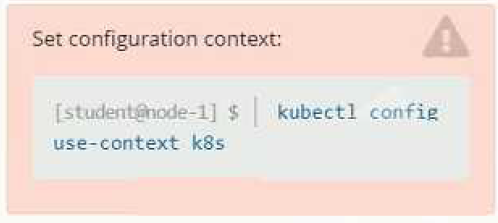
Set Configuration Context:

[student@node-1] $ | kubectl

Config use-context k8s

Task

You have rolled out a new pod to your infrastructure and now you need to allow it to communicate with the web and storage pods but nothing else. Given the running pod kdsn00201 -newpod edit it to use a network policy that will allow it to send and receive traffic only to and from the web and storage pods.

Show Answer Hide Answer
Correct Answer: A

To allow a pod to send and receive traffic only to and from specific pods, you can use network policies in Kubernetes.

First, you will need to create a network policy that defines the allowed traffic. You can create a network policy yaml file with the following rules:

apiVersion: networking.k8s.io/v1

kind: NetworkPolicy

metadata:

name: newpod-network-policy

namespace: default

spec:

podSelector:

matchLabels:

app: kdsn00201-newpod

ingress:

- from:

- podSelector:

matchLabels:

app: web

- podSelector:

matchLabels:

app: storage

This policy will only allow incoming traffic to the pod with the label app=kdsn00201-newpod from pods with the label app=web or app=storage. If you have different labels on your web and storage pods please update the matchLabels accordingly.

Once you have created the network policy, you can apply it to the cluster by running the following command:

kubectl apply -f <network-policy-file>.yaml

This will apply the network policy to the cluster, and the newpod will only be able to send and receive traffic to and from the web and storage pods.

Please note that, NetworkPolicy resource is not available by default, you need to enable the NetworkPolicy feature on your Kubernetes cluster. This feature is enabled by default on some clusters and must be explicitly enabled on others. You can check if NetworkPolicy is available by running the command kubectl api-versions | grep networking

Also, you need to ensure that the pods that you want to allow traffic to and from are running on the same namespace.


Question No. 2

SIMULATION

Task

Create a new deployment for running.nginx with the following parameters;

* Run the deployment in the kdpd00201 namespace. The namespace has already been created

* Name the deployment frontend and configure with 4 replicas

* Configure the pod with a container image of lfccncf/nginx:1.13.7

* Set an environment variable of NGINX__PORT=8080 and also expose that port for the container above

Show Answer Hide Answer
Correct Answer: A

Solution:


Question No. 3

SIMULATION

Task:

1) Create a secret named app-secret in the default namespace containing the following single key-value pair:

Key3: value1

2) Create a Pod named ngnix secret in the default namespace.Specify a single container using the nginx:stable image.

Add an environment variable named BEST_VARIABLE consuming the value of the secret key3.

Show Answer Hide Answer
Correct Answer: A

Solution:


Question No. 4

SIMULATION

You must connect to the correct host . Failure to do so may result in a zero score.

[candidate@base] $ ssh ckad00044

Task:

Update the existing Deployment busybox running in the namespace rapid-goat .

First, change the container name to musl.

Next, change the container image to busybox:musl .

Finally, ensure that the changes to the busybox Deployment, running in the

namespace rapid-goat, are rolled out.

Show Answer Hide Answer
Correct Answer: A

0) SSH to the correct host

ssh ckad00044

(Optional sanity)

kubectl config current-context

kubectl get ns | grep rapid-goat

1) Inspect the Deployment and current container name

kubectl -n rapid-goat get deploy busybox

kubectl -n rapid-goat get deploy busybox -o jsonpath='{.spec.template.spec.containers[*].name}{'\n'}'

kubectl -n rapid-goat get deploy busybox -o jsonpath='{.spec.template.spec.containers[*].image}{'\n'}'

Note the current container name (likely something like busybox). We need to rename it to musl.

2) Edit the Deployment (best for renaming container)

Renaming a container is easiest with edit:

kubectl -n rapid-goat edit deploy busybox

In the editor, find:

spec:

template:

spec:

containers:

- name: <old-name>

image: <old-image>

Change it to:

- name: musl

image: busybox:musl

Save and exit.

3) Ensure the rollout happens and completes

kubectl -n rapid-goat rollout status deploy busybox

4) Verify the new Pod template is correct

Check the Deployment template:

kubectl -n rapid-goat get deploy busybox -o jsonpath='{.spec.template.spec.containers[0].name}{'\n'}{.spec.template.spec.containers[0].image}{'\n'}'

Check running Pods and the image actually used:

kubectl -n rapid-goat get pods -o wide

POD=$(kubectl -n rapid-goat get pods -l app=busybox -o jsonpath='{.items[0].metadata.name}' 2>/dev/null || true)

If you don't have that label selector, just pick a pod name from kubectl get pods and:

kubectl -n rapid-goat describe pod | sed -n '/Containers:/,/Conditions:/p'


Question No. 5

SIMULATION

Set Configuration Context:

[student@node-1] $ | kubectl

Config use-context k8s

Context

A container within the poller pod is hard-coded to connect the nginxsvc service on port 90 . As this port changes to 5050 an additional container needs to be added to the poller pod which adapts the container to connect to this new port. This should be realized as an ambassador container within the pod.

Task

* Update the nginxsvc service to serve on port 5050.

* Add an HAproxy container named haproxy bound to port 90 to the poller pod and deploy the enhanced pod. Use the image haproxy and inject the configuration located at /opt/KDMC00101/haproxy.cfg, with a ConfigMap named haproxy-config, mounted into the container so that haproxy.cfg is available at /usr/local/etc/haproxy/haproxy.cfg. Ensure that you update the args of the poller container to connect to localhost instead of nginxsvc so that the connection is correctly proxied to the new service endpoint. You must not modify the port of the endpoint in poller's args . The spec file used to create the initial poller pod is available in /opt/KDMC00101/poller.yaml

Show Answer Hide Answer
Correct Answer: A

Solution:

To update the nginxsvc service to serve on port 5050, you will need to edit the service's definition yaml file. You can use the kubectl edit command to edit the service in place.

kubectl edit svc nginxsvc

This will open the service definition yaml file in your default editor. Change the targetPort of the service to 5050 and save the file.

To add an HAproxy container named haproxy bound to port 90 to the poller pod, you will need to edit the pod's definition yaml file located at /opt/KDMC00101/poller.yaml.

You can add a new container to the pod's definition yaml file, with the following configuration:

containers:

- name: haproxy

image: haproxy

ports:

- containerPort: 90

volumeMounts:

- name: haproxy-config

mountPath: /usr/local/etc/haproxy/haproxy.cfg

subPath: haproxy.cfg

args: ['haproxy', '-f', '/usr/local/etc/haproxy/haproxy.cfg']

This will add the HAproxy container to the pod and configure it to listen on port 90. It will also mount the ConfigMap haproxy-config to the container, so that haproxy.cfg is available at /usr/local/etc/haproxy/haproxy.cfg.

To inject the configuration located at /opt/KDMC00101/haproxy.cfg to the container, you will need to create a ConfigMap using the following command:

kubectl create configmap haproxy-config --from-file=/opt/KDMC00101/haproxy.cfg

You will also need to update the args of the poller container so that it connects to localhost instead of nginxsvc. You can do this by editing the pod's definition yaml file and changing the args field to args: ['poller','--host=localhost'].

Once you have made these changes, you can deploy the updated pod to the cluster by running the following command:

kubectl apply -f /opt/KDMC00101/poller.yaml

This will deploy the enhanced pod with the HAproxy container to the cluster. The HAproxy container will listen on port 90 and proxy connections to the nginxsvc service on port 5050. The poller container will connect to localhost instead of nginxsvc, so that the connection is correctly proxied to the new service endpoint.

Please note that, this is a basic example and you may need to tweak the haproxy.cfg file and the args based on your use case.


Unlock All Questions for Linux Foundation CKAD Exam

Full Exam Access, Actual Exam Questions, Validated Answers, Anytime Anywhere, No Download Limits, No Practice Limits

Get All 48 Questions & Answers