Prepare for the VMware Advanced Deploy VMware NSX-T Data Center 3.x exam with our extensive collection of questions and answers. These practice Q&A are updated according to the latest syllabus, providing you with the tools needed to review and test your knowledge.
QA4Exam focus on the latest syllabus and exam objectives, our practice Q&A are designed to help you identify key topics and solidify your understanding. By focusing on the core curriculum, These Questions & Answers helps you cover all the essential topics, ensuring you're well-prepared for every section of the exam. Each question comes with a detailed explanation, offering valuable insights and helping you to learn from your mistakes. Whether you're looking to assess your progress or dive deeper into complex topics, our updated Q&A will provide the support you need to confidently approach the VMware 3V0-41.22 exam and achieve success.
SIMULATION
Task 9
TO prepare for Virtual machine migration from VLAN-backed port groups to an overlay segment in NSX. a test bridge has been configured. The bridge
is not functioning, and the -Bridge-VM- is not responding to ICMP requests from the main console.
You need to:
* Troubleshoot the configuration and make necessary changes to restore access to the application.
Complete the requested task.
Notes: Passwords are contained in the user_readme.txt. This task is not dependent on another. This task should take approximately IS minutes to complete.
To troubleshoot the bridge configuration and restore access to the application, you need to follow these steps:
Log in to the NSX Manager UI with admin credentials. The default URL is https://<nsx-manager-ip-address>.
Navigate to Networking > Segments and select the overlay segment that is bridged to the VLAN-backed port group. For example, select Web-01 segment that you created in Task 2.
Click Bridge > Set and verify the configuration details of the bridge. Check for any discrepancies or errors in the parameters such as bridge name, bridge ID, VLAN ID, edge node, etc.
If you find any configuration errors, click Edit and modify the parameters accordingly. Click Save to apply the changes.
If you do not find any configuration errors, check the connectivity and firewall rules between the overlay segment and the VLAN-backed port group. You can use ping or traceroute commands from the NSX Edge CLI or the vSphere Web Client to test the connectivity. You can also use show service bridge command to check the status of the bridge service on the NSX Edge.
If you find any connectivity or firewall issues, resolve them by adjusting the network settings or firewall rules on the NSX Edge or the vSphere Distributed Switch.
SIMULATION
Task 13
You have been asked to configure the NSX backups for the environment so that if the NSX Manager fails it can be restored with the same IP address to the original primary Data Center that is in an Active / Standby configuration. Backups should be scheduled to run once every 24 hours as well as when there are changes published to the NSX environment. Ensure that backups are completed on their respective environment. Verify the backup file has been created on the SFTP server.
* Credentials needed to complete the task:

You need to:
* Verify that an SFTP server is available on the network and obtain SFTP Fingerprint.
* Configure NSX Backups via NSX Appliance Backup
* Configure Scheduling Criteria
Backup Configuration Criteria

Complete the requested task.
Notes: Passwords are contained in the user_readme.txt. This task is not dependent on other tasks. This task should take approximately 15 minutes to complete.
To configure the NSX backups for the environment, you need to follow these steps:
Verify that an SFTP server is available on the network and obtain SFTP fingerprint. You can use the search_web('SFTP server availability') tool to find some information on how to set up and check an SFTP server. You can also use the ssh-keyscan command to get the fingerprint of the SFTP server. For example, ssh-keyscan -t ecdsa sftp_server will return the ECDSA key of the sftp_server. You can compare this key with the one displayed on the NSX Manager UI when you configure the backup settings.
Configure NSX Backups via NSX Appliance Backup. Log in to the NSX Manager UI with admin credentials. The default URL is https://<nsx-manager-ip-address>. Select System > Lifecycle Management > Backup & Restore. Click Edit under the SFTP Server label to configure your SFTP server. Enter the FQDN or IP address of the backup file server, such as 10.10.10.100. The protocol text box is already filled in. SFTP is the only supported protocol. Change the default port if necessary. The default TCP port is 22. In the Directory Path text box, enter the absolute directory path where the backups will be stored, such as /dat
a. The directory must already exist and cannot be the root directory (/). Avoid using path drive letters or spaces in directory names; they are not supported. In the Passphrase text box, enter a passphrase that will be used to encrypt and decrypt the backup files, such as VMware1!. Click Save to create the backup configuration.
Configure Scheduling Criteria. On the Backup & Restore page, click Edit under the Schedule label to configure your backup schedule. Select Enabled from the drop-down menu to enable scheduled backups. Select Daily from the Frequency drop-down menu to run backups once every 24 hours. Select a time from the Time drop-down menu to specify when the backup will start, such as 12:00 AM. Select Enabled from the Additional Backup Trigger drop-down menu to run backups when there are changes published to the NSX environment. Click Save to create the backup schedule.
SIMULATION
Task 12
An issue with the Tampa web servers has been reported. You would like to replicate and redirect the web traffic to a network monitoring tool outside Of the NSX-T environment to further analyze the traffic.
You are asked to configure traffic replication to the monitoring software for your Tampa web overlay segments with bi-directional traffic using this detail:

Complete the requested configuration.
Notes: Passwords are contained in the user_readme.txt. This task is not dependent on other tasks. This task should take approximately 10 minutes to complete.
To configure traffic replication to the monitoring software for your Tampa web overlay segments with bi-directional traffic, you need to follow these steps:
Log in to the NSX Manager UI with admin credentials. The default URL is https://<nsx-manager-ip-address>.
Navigate to Networking > Segments and select the Tampa web overlay segment that you want to replicate the traffic from. For example, select Web-01 segment that you created in Task 2.
Click Port Mirroring > Set > Add Session and enter a name and an optional description for the port mirroring session. For example, enter Tampa-Web-Monitoring.
In the Direction section, select Bi-directional as the direction from the drop-down menu. This will replicate both ingress and egress traffic from the source to the destination.
In the Source section, click Set and select the VMs or logical ports that you want to use as the source of the traffic. For example, select Web-VM-01 and Web-VM-02 as the source VMs. Click Apply.
In the Destination section, click Set and select Remote L3 SPAN as the destination type from the drop-down menu. This will allow you to replicate the traffic to a remote destination outside of the NSX-T environment.
Enter the IP address of the destination device where you have installed the network monitoring software, such as 10.10.10.200.
Select an existing service profile from the drop-down menu or create a new one by clicking New Service Profile. A service profile defines the encapsulation type and other parameters for the replicated traffic.
Optionally, you can configure advanced settings such as TCP/IP stack, snap length, etc., for the port mirroring session.
Click Save and then Close to create the port mirroring session.
SIMULATION
Task 2
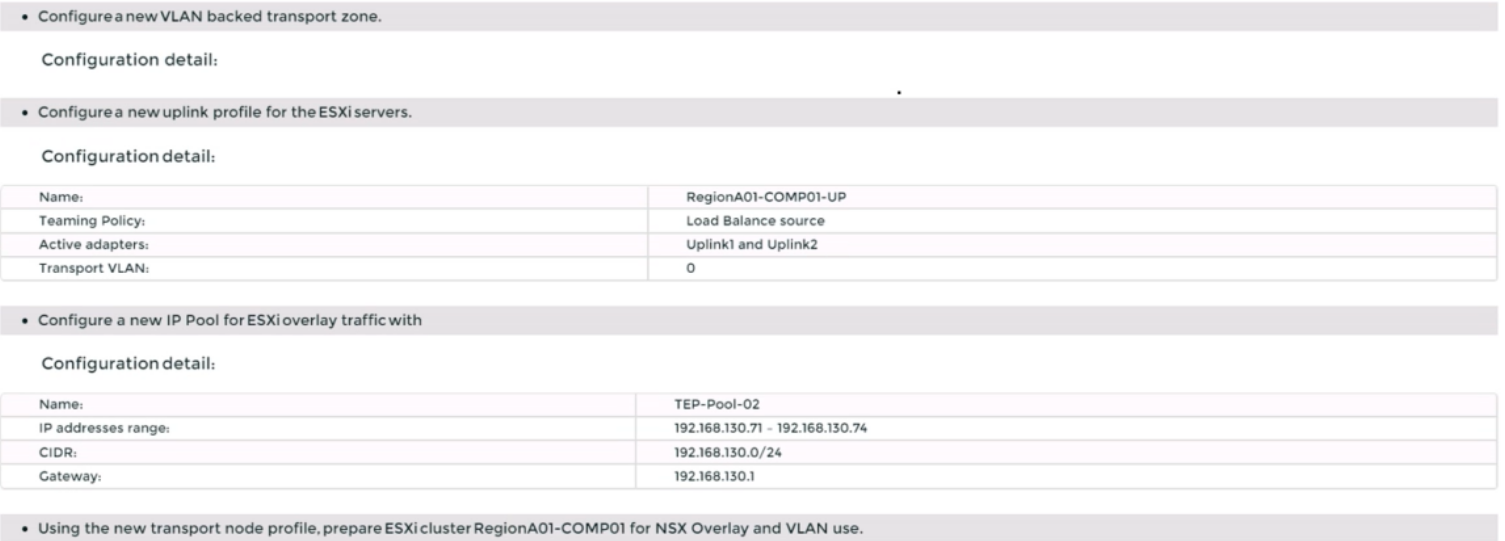
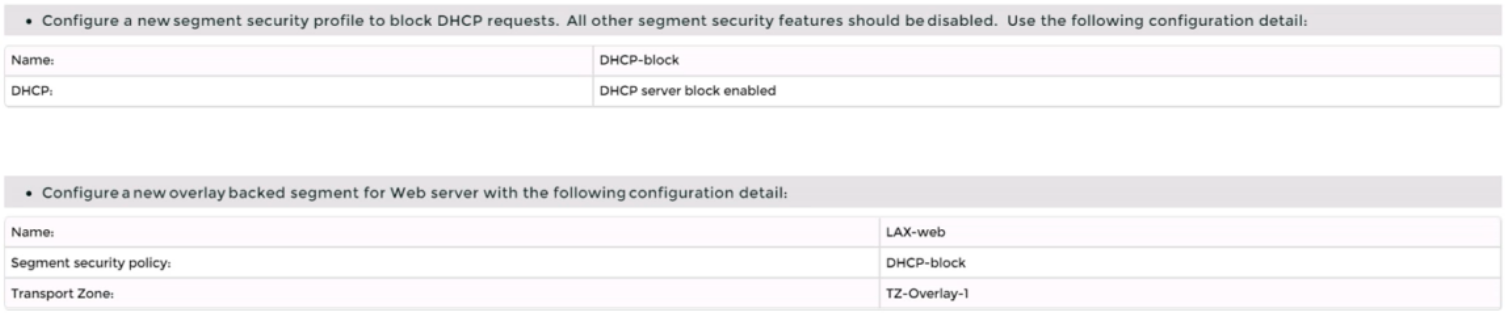
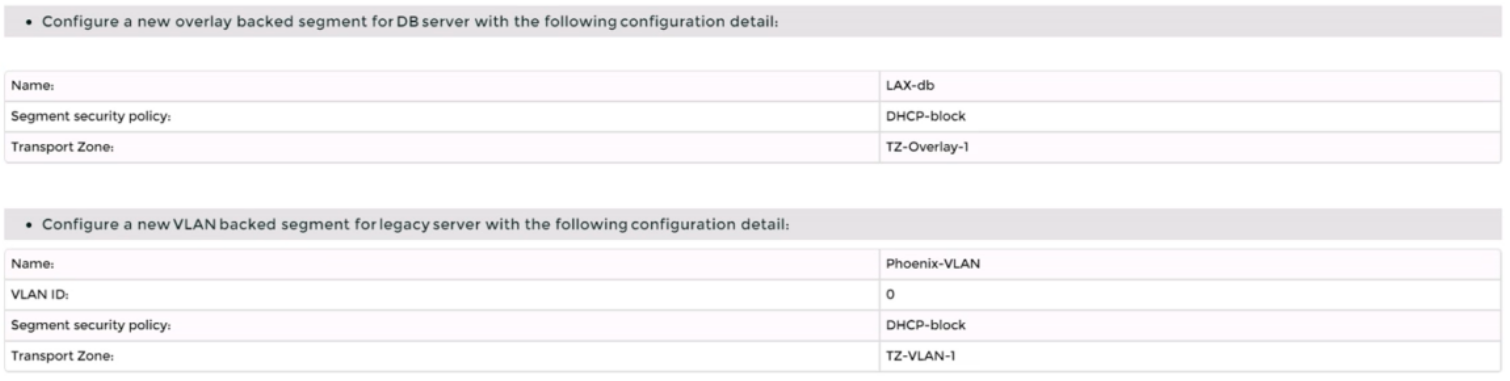
You are asked to deploy three Layer 2 overlay-backed segments to support a new 3-tier app and one Layer 2 VLAN-backed segment for support of a legacy application. The logical segments must block Server DHCP requests. Ensure three new overlay-backed segments and one new VLAN-backed logical segment are deployed to the RegionA01-COPMOI compute cluster. All configuration should be done utilizing the NSX UI.
You need to:


Complete the requested task.
Notes: Passwords are contained in the user_readme.txt. Task 2 is dependent on the completion of Task 1. Other tasks are dependent on completion of this task. You may want to move to the next tasks while waiting for configuration changes to be applied. This task should take approximately 10 minutes to complete.
To deploy three layer 2 overlay-backed segments and one layer 2 VLAN-backed segment, you need to follow these steps:
Log in to the NSX Manager UI with admin credentials. The default URL is https://<nsx-manager-ip-address>.
Navigate to Networking > Segments and click Add Segment.
Enter a name for the segment, such as Web-01.
Select Tier-1 as the connectivity option and choose an existing tier-1 gateway from the drop-down menu or create a new one by clicking New Tier-1 Gateway.
Enter the gateway IP address of the subnet in a CIDR format, such as 192.168.10.1/24.
Select an overlay transport zone from the drop-down menu, such as Overlay-TZ.
Optionally, you can configure advanced settings such as DHCP, Metadata Proxy, MAC Discovery, or QoS for the segment by clicking Set Advanced Configs.
Click Save to create the segment.
Repeat steps 2 to 8 for the other two overlay-backed segments, such as App-01 and DB-01, with different subnet addresses, such as 192.168.20.1/24 and 192.168.30.1/24.
To create a VLAN-backed segment, click Add Segment again and enter a name for the segment, such as Legacy-01.
Select Tier-0 as the connectivity option and choose an existing tier-0 gateway from the drop-down menu or create a new one by clicking New Tier-0 Gateway.
Enter the gateway IP address of the subnet in a CIDR format, such as 10.10.10.1/24.
Select a VLAN transport zone from the drop-down menu, such as VLAN-TZ, and enter the VLAN ID for the segment, such as 100.
Optionally, you can configure advanced settings such as DHCP, Metadata Proxy, MAC Discovery, or QoS for the segment by clicking Set Advanced Configs.
Click Save to create the segment.
To apply a segment security profile to block DHCP requests on the segments, navigate to Networking > Segments > Segment Profiles and click Add Segment Profile.
Select Segment Security as the profile type and enter a name and an optional description for the profile.
Toggle the Server Block and Server Block - IPv6 buttons to enable DHCP filtering for both IPv4 and IPv6 traffic on the segments that use this profile.
Click Save to create the profile.
Navigate to Networking > Segments and select the segments that you want to apply the profile to.
Click Actions > Apply Profile and select the segment security profile that you created in step 18.
Click Apply to apply the profile to the selected segments.
SIMULATION
Task 10
You have been notified by the Web Team that they cannot get to any northbound networks from their Tampa web servers that are deployed on an NSX-T
network segment. The Tampa web VM's however can access each other.
You need to:
* Troubleshoot to find out why the Tampa web servers cannot communicate to any northbound networks and resolve the issue.
Complete the requested task. TO verify your work. ping the Control Center @ 192.168.110.10
Notes: Passwords are contained in the user_readme.txt. This task is dependent on Task 4. Some exam candidates may have already completed this task if they had done more than the minimum required in Task 4. This task should take approximately 15 minutes to complete.
To troubleshoot why the Tampa web servers cannot communicate to any northbound networks, you need to follow these steps:
Log in to the NSX Manager UI with admin credentials. The default URL is https://<nsx-manager-ip-address>.
Navigate to Networking > Tier-0 Gateway and select the tier-0 gateway that connects the NSX-T network segment to the northbound networks. For example, select T0-GW-01.
Click Interfaces > Set and verify the configuration details of the interfaces. Check for any discrepancies or errors in the parameters such as IP address, subnet mask, MTU, etc.
If you find any configuration errors, click Edit and modify the parameters accordingly. Click Save to apply the changes.
If you do not find any configuration errors, check the connectivity and firewall rules between the tier-0 gateway and the northbound networks. You can use ping or traceroute commands from the NSX Edge CLI or the vSphere Web Client to test the connectivity. You can also use show service router command to check the status of the routing service on the NSX Edge.
If you find any connectivity or firewall issues, resolve them by adjusting the network settings or firewall rules on the NSX Edge or the northbound devices.
Full Exam Access, Actual Exam Questions, Validated Answers, Anytime Anywhere, No Download Limits, No Practice Limits
Get All 16 Questions & Answers