This question involves configuring an outbound connector using the Core Connector: Job Postings template in Workday Pro Integrations. We need to meet two specific vendor requirements:
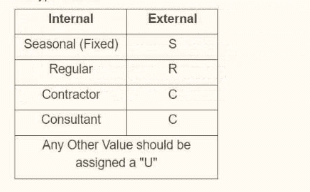
Map worker subtype values according to the provided table (e.g., Seasonal (Fixed) = 'S', Regular = 'R', Contractor = 'C', Consultant = 'C', and any other value = 'U').
Format the output file name as 'CC_Job_Postings_dd-mm-yy_#.xml', where:
'dd' is the current day at runtime,
'mm' is the current month at runtime,
'yy' is the last two digits of the current year at runtime,
'#' is the current value of the sequencer at runtime.
Let's break down the requirements and evaluate each option to determine the correct configuration steps.
Understanding the Requirements
1. Worker Subtype Mapping
The vendor provides a table for worker subtype values:
Internal Seasonal (Fixed) maps to 'S'
Internal Regular maps to 'R'
Internal Contractor maps to 'C'
Internal Consultant maps to 'C'
Any other value should be assigned 'U'
In Workday, worker subtypes are typically part of the worker data, and for integrations, we use integration mappings to transform these values into the format required by the vendor. The integration mapping allows us to define how internal Workday values (e.g., worker subtypes) map to external values (e.g., 'S', 'R', 'C', 'U'). If no specific mapping exists for a value, we need to set a default value of 'U' for any unmatched subtypes, as specified.
This mapping is configured in the integration system's 'Integration Mapping' or 'Field Mapping' settings, depending on the template. For the Core Connector: Job Postings, we typically use the 'Integration Mapping' feature to handle data transformations, including setting default values for unmapped data.
2. Output File Name Format
The vendor requires the output file to be named 'CC_Job_Postings_dd-mm-yy_#.xml', where:
'CC_Job_Postings' is a static prefix,
'dd-mm-yy' represents the current date at runtime (day, month, last two digits of the year),
'#' is the current value from a sequence generator (sequencer) at runtime.
In Workday, file names for integrations are configured in the 'File Utility' or 'File Output' settings of the integration. To achieve this format:
The date portion ('dd-mm-yy') can be dynamically generated using Workday's date functions or runtime variables, often configured in the File Utility's 'Filename' field with a 'Determine Value at Runtime' setting.
The sequence number ('#') requires a sequence generator, which is enabled and configured to provide a unique incrementing number for each file. Workday uses the 'Sequence Generator' feature for this purpose, typically accessed via the 'Create ID Definition / Sequence Generator' task.
The Core Connector: Job Postings template supports these configurations, allowing us to set filename patterns in the integration's setup.
Evaluating Each Option
Let's analyze each option step by step, ensuring alignment with Workday Pro Integrations best practices and the vendor's requirements.
Option A:
* Enable the Sequence Generator Field Attribute
* Configure the Sequence Generator
* Configure the Worker Sub Type Integration Mapping leaving the default value blank
Analysis:
Sequence Generator Configuration: Enabling the 'Sequence Generator Field Attribute' and configuring the sequence generator is partially correct for the file name's '#' (sequencer) requirement. However, 'Sequence Generator Field Attribute' is not a standard term in Workday; it might refer to enabling a sequence generator in a field mapping, but this is unclear and likely incorrect. Sequence generators are typically enabled as an 'Integration Service' or configured in the File Utility, not as a field attribute.
Worker Subtype Mapping: Configuring the worker subtype integration mapping but leaving the default value blank is problematic. The vendor requires any unmapped value to be 'U,' so leaving it blank would result in missing or null values, failing to meet the requirement.
Date in Filename: This option doesn't mention configuring the date ('dd-mm-yy') in the filename, which is critical for the 'CC_Job_Postings_dd-mm-yy_#.xml' format.
Conclusion: This option is incomplete and incorrect because it doesn't address the default 'U' for unmapped subtypes and lacks date configuration for the filename.
Option B:
* Enable the Integration Mapping Field Attribute
* Configure the Worker Sub Type Integration Mapping leaving the default value blank
* Configure the Sequence Generator
Analysis:
Sequence Generator Configuration: Configuring the sequence generator addresses the '#' (sequencer) in the filename, which is correct for the file name requirement.
Worker Subtype Mapping: Similar to Option A, leaving the default value blank for the worker subtype mapping fails to meet the vendor's requirement for 'U' as the default for unmapped values. This would result in errors or null outputs, which is unacceptable.
Date in Filename: Like Option A, there's no mention of configuring the date ('dd-mm-yy') in the filename, making this incomplete for the full file name format.
Integration Mapping Field Attribute: This term is ambiguous. Workday uses 'Integration Mapping' or 'Field Mapping' for data transformations, but 'Field Attribute' isn't standard for enabling mappings. This suggests a misunderstanding of Workday's configuration.
Conclusion: This option is incomplete and incorrect due to the missing default 'U' for worker subtypes and lack of date configuration for the filename.
Option C:
* Enable the Integration Mapping Integration Service
* Configure the Worker Sub Type Integration Mapping and include a default value of 'U'
* Configure the Sequence Generator
Analysis:
Sequence Generator Configuration: Configuring the sequence generator is correct for the '#' (sequencer) in the filename, addressing part of the file name requirement.
Worker Subtype Mapping: Including a default value of 'U' for the worker subtype mapping aligns perfectly with the vendor's requirement for any unmapped value to be 'U.' This is a strong point.
Date in Filename: This option doesn't mention configuring the date ('dd-mm-yy') in the filename, which is essential for the 'CC_Job_Postings_dd-mm-yy_#.xml' format. Without this, the file name requirement isn't fully met.
Integration Mapping Integration Service: Enabling the 'Integration Mapping Integration Service' is vague. Workday doesn't use this exact term; instead, integration mappings are part of the integration setup, not a separate service. This phrasing suggests confusion or misalignment with Workday terminology.
Conclusion: This option is partially correct (worker subtype mapping) but incomplete due to the missing date configuration for the filename and unclear terminology.
Option D:
* Enable the Sequence Generator Integration Service
* Configure the Sequence Generator
* Configure the Worker Sub Type Integration Mapping and include a default value of 'U'
Analysis:
Sequence Generator Configuration: Enabling the 'Sequence Generator Integration Service' and configuring the sequence generator addresses the '#' (sequencer) in the filename. While 'Sequence Generator Integration Service' isn't a standard term, it likely refers to enabling and configuring the sequence generator functionality, which is correct. In Workday, this is done via the 'Create ID Definition / Sequence Generator' task and linked in the File Utility.
Worker Subtype Mapping: Configuring the worker subtype integration mapping with a default value of 'U' meets the vendor's requirement for any unmapped value, ensuring 'S,' 'R,' 'C,' or 'U' is output as specified in the table. This is accurate and aligns with Workday's integration mapping capabilities.
Date in Filename: Although not explicitly mentioned in the steps, Workday's Core Connector: Job Postings template and File Utility allow configuring the filename pattern, including dynamic date values ('dd-mm-yy'). The filename 'CC_Job_Postings_dd-mm-yy_#.xml' can be set in the File Utility's 'Filename' field with 'Determine Value at Runtime,' using date functions and the sequence generator. This is a standard practice and implied in the configuration, making this option complete.
Conclusion: This option fully addresses both requirements: worker subtype mapping with 'U' as the default and the file name format using the sequence generator and date. The terminology ('Sequence Generator Integration Service') is slightly non-standard but interpretable as enabling/configuring the sequence generator, which is correct in context.
Final Verification
To confirm, let's summarize the steps for Option D and ensure alignment with Workday Pro Integrations:
Enable the Sequence Generator Integration Service: This likely means enabling and configuring the sequence generator via the 'Create ID Definition / Sequence Generator' task, then linking it to the File Utility for the '#' in the filename.
Configure the Sequence Generator: Set up the sequence generator to provide incremental numbers, ensuring each file has a unique '#' value.
Configure the Worker Sub Type Integration Mapping with a default value of 'U': Use the integration mapping to map Internal Seasonal (Fixed) to 'S,' Regular to 'R,' Contractor to 'C,' Consultant to 'C,' and set 'U' as the default for any other value. This is done in the integration's mapping configuration.
Filename Configuration (Implied): In the File Utility, set the filename to 'CC_Job_Postings_dd-mm-yy_#.xml,' where 'dd-mm-yy' uses Workday's date functions (e.g., %d-%m-%y) and '#' links to the sequence generator.
This matches Workday's documentation and practices for the Core Connector: Job Postings template, ensuring both requirements are met.
Why Not the Other Options?
Options A and B fail because they leave the default worker subtype value blank, not meeting the 'U' requirement.
Option C fails due to missing date configuration for the filename and unclear terminology ('Integration Mapping Integration Service').
Option D is the only one that fully addresses both the worker subtype mapping (with 'U' default) and implies the filename configuration, even if the date setup isn't explicitly listed (it's standard in Workday).
Supporting Documentation
The reasoning is based on Workday Pro Integrations best practices, including:
Workday Tutorial: Activity Creating Unique Filenames from EIB-Out Integrations -- Details on using sequence generators for filenames.
Workday Tutorial: EIB Features -- Explains integration mappings and default values.
Get_Sequence_Generators Operation Details -- Workday API documentation on sequence generators.
Workday Advanced Studio Tutorial -- Covers Core Connector templates and file name configurations.
r/workday Reddit Post: How to Create a New Sequence Generator for Filename for EIB -- Community insights on sequence generators.